
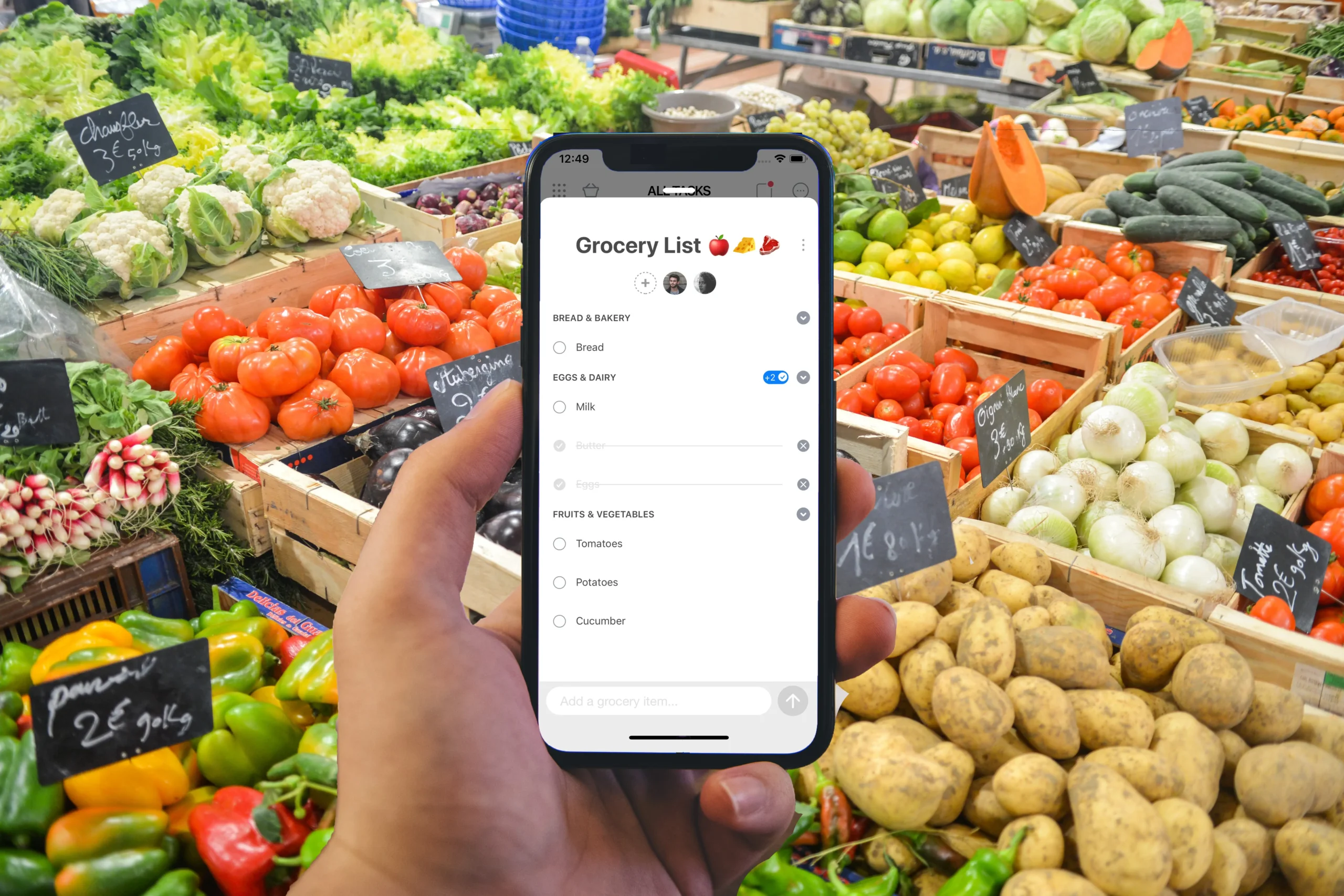
Paper lists work until the moment they vanish, smudge, or stay on the kitchen counter while you stand in a store trying to remember whether you needed toothpaste or just wanted it.
Digital lists feel calmer for busy lives, because your phone is already with you, your list can update in real time, and shared lists can prevent the classic “we both bought milk” problem without adding more mental effort.
This smart shopping list apps overview walks through the simplest, safest features to look for, the main types of shopping list apps available, privacy habits that reduce risk, and a practical step-by-step way to set up your first list without feeling like you need a tech degree.
Smart shopping list apps overview: what a “good” app should do in real life
A good list app is not the one with the longest feature page, because the best app is the one you actually use when you are tired, rushed, or distracted, which means speed, clarity, and reliability matter more than fancy extras.
Most people succeed with simple interfaces that make adding items effortless, make checking items satisfying, and make sharing with other people obvious, because friction is the main reason digital lists get abandoned.
Instead of starting by downloading five apps and hoping one feels right, a practical approach is choosing your “must-haves” first, then testing one app for a week with a real grocery trip, because a short trial reveals more than any description ever will.
Confidence increases when you treat the app like a tool, since tools get evaluated by how well they reduce stress, cut mistakes, and save time, rather than by how impressive they look in screenshots.
- Fast add: items should be addable in seconds, ideally with autocomplete or a quick-entry bar that stays accessible.
- Easy check-off: tapping an item should mark it done without accidental mis-taps, and the app should keep completed items out of the way.
- Shared lists: updates should sync quickly, so one person checking “eggs” removes it for everyone else without delays.
- Organization options: categories, aisles, or sections should exist, yet they should be optional rather than mandatory.
- Offline reliability: the list should still open and function in stores with weak signal or busy networks.
The “minimum viable list app” checklist for busy people
For many households, the simplest setup wins, because anything complicated becomes one more task to maintain, so the minimum viable list app is the one that covers the basics cleanly and then gets out of your way.
Choosing a basic tool first does not prevent you from upgrading later, while it does prevent you from wasting time setting up a complex system you will not maintain after the first enthusiastic week.
- Open instantly and stay readable, even with a long list, because scrolling lag turns list-making into irritation.
- Allow quick add while shopping, because “I’ll add it later” usually becomes “I forgot.”
- Support shared lists if you live with someone, because shared buying creates the most avoidable duplicate spending.
- Offer simple sorting, because grouping by pantry, produce, dairy, and household can reduce wandering and impulse grabs.
- Keep your data reasonably private, because a grocery list can reveal habits, household routines, and sometimes health-related purchases.
Shopping list apps: the main types you will see
Several types of apps can function as shopping list apps, and the best match depends on whether you want a dedicated grocery experience, a flexible note system, or an all-purpose task tool that also happens to hold lists.
Understanding the categories helps you pick faster, because each type comes with predictable strengths and predictable compromises, which means you can choose based on your priorities instead of guessing randomly.
Type 1: Dedicated grocery list apps
Dedicated grocery list apps focus on the shopping moment, so they often emphasize shared lists, aisle categories, item suggestions, and sometimes barcode scan tools, because their entire purpose is getting you through the store efficiently.
Many of these tools also include extras like recipe-to-list features, pantry tracking, or reminders, yet their core value usually comes from speed and organization tailored to groceries rather than general tasks.
- Best for: households shopping together, people who want a “grocery-first” layout, and anyone who likes lists sorted by aisle or category.
- Potential downside: extra features can feel noisy if you only want a basic list, and some apps push accounts or upgrades quickly.
Type 2: Notes apps used as lists
Notes apps can be surprisingly effective when you want simplicity, because they often have clean interfaces, quick typing, and easy syncing across devices, which makes them a “good enough” solution with low setup effort.
Shared lists may be possible through sharing a note, and checkboxes may exist, yet the experience can be less grocery-specific, meaning fewer category tools and fewer shopping-focused shortcuts.
- Best for: solo shoppers, people who already live in a notes ecosystem, and anyone who wants one place for lists and random ideas.
- Potential downside: grocery-friendly features like aisle sorting, barcode scan, and quick item suggestions may be limited or absent.
Type 3: Reminders and task apps used as shopping lists
Task and reminders apps are built around checking items off, so they can work very well for shopping, especially when you want recurring reminders like “add toothpaste every two weeks” or “buy cat food monthly.”
Collaboration can be strong in some task tools, although the interface may feel more like “work tasks” than “shopping,” which some people love for structure and others find too formal.
- Best for: people who want recurring items, deadlines, or a combined “errands and groceries” view that keeps life organized in one place.
- Potential downside: a task-centric UI can create extra steps, and grocery-specific convenience features may be less polished.
Type 4: Family organizer apps with shared lists
Family organizer apps often include calendars, chores, meal planning, and shared lists, which can be helpful for busy households that want one shared hub instead of multiple separate tools.
In exchange for that all-in-one approach, setup can take longer, and you may need to manage more permissions and sharing settings, because the app is holding more parts of your family routine than a basic list would.
- Best for: families coordinating schedules, chores, and grocery planning together, especially when multiple caregivers participate.
- Potential downside: complexity can become a barrier, and privacy considerations grow as more household data is stored in one place.
Type 5: Store-linked lists and retailer apps
Retailer apps sometimes offer lists that connect to online ordering, coupons, or past purchases, and that can feel convenient when you shop from the same place consistently and like re-ordering familiar items.
A realistic caution is that retailer-linked lists can reduce flexibility and can track purchasing behavior more closely, so they are best treated as optional tools rather than the only place you keep your household plan.
- Best for: consistent shoppers who reorder the same products and want quick “buy again” assistance.
- Potential downside: the list may not work well across different stores, and data tracking may be heavier than you prefer.
Core features to look for, explained without hype
Features are only valuable when they remove friction, so the goal is picking features that match your habits, which means you should choose tools that support how you shop today rather than how you wish you shopped on your most organized day of the year.
A practical feature review also separates “nice convenience” from “must-have function,” because must-haves protect your time and budget while nice-to-haves can be added later if you actually miss them.
Shared lists that sync quickly
Shared lists matter most when two people shop, plan, or restock together, because real-time updates prevent duplicate buys, reduce confusion, and remove the need for constant texting like “did you already get bread.”
Sync speed is the hidden detail here, since slow syncing creates mistakes, so the best shared lists feel almost instant and show who changed what when changes matter.
- Look for simple invite flows, because complicated sharing steps reduce the odds everyone participates consistently.
- Prefer clear conflict handling, because two people checking the same item at once should not break the list.
- Consider role options, because some households want one person to edit while others only check off items.
Barcode scan: helpful, optional, and worth testing
Barcode scan features can speed up adding packaged items, because scanning can add a product name quickly without typing, which is useful when your hands are busy or you want accuracy for specific brands.
Not every barcode scan system is equally smooth, and not every store’s items are recognized reliably, so the right way to evaluate barcode scan is to test it with three common items you buy often and see whether it saves time or creates annoyance.
- Scan a common pantry item you buy repeatedly, because repeat items are where scanning could actually pay off.
- Scan a less common item, because this reveals how the app behaves when it does not recognize something instantly.
- Check editing ease, because you want to fix a misread name quickly rather than fighting a rigid database entry.
- Barcode scan is most useful for: households that rebuy the same packaged goods and want consistent naming.
- Barcode scan is less useful for: produce, bakery items, and anything without consistent packaging or consistent barcodes.
Simple interfaces that reduce decision fatigue
Simple interfaces matter because shopping already requires decisions, so your list tool should reduce choices rather than adding new ones, which means fewer screens, fewer pop-ups, and fewer “upgrade now” prompts during basic use.
A clean design also helps accessibility, since large text options, clear contrast, and easy tapping can make the difference between “I love this” and “I avoid this” for many users.
- Prioritize readable typography, because a list should be glanceable while you move through a store.
- Favor one-tap actions, because multi-step checkoffs slow you down and create irritation quickly.
- Choose calm visuals, because cluttered screens can feel stressful, especially during busy shopping trips.
Categories, aisles, and sorting that match how you shop
Sorting is useful when it mirrors your store flow, because grouping items into produce, dairy, pantry, freezer, and household helps you shop faster and reduces backtracking that invites impulse buys.
Flexibility matters too, since different stores have different layouts, so a system that lets you reorder categories or drag items into sections can be more practical than a rigid template that never matches your real aisles.
- Start with broad categories, because too many micro-categories can become a maintenance task you resent.
- Adjust after two trips, because one trip is not enough evidence to design the perfect structure.
- Keep a “misc” category, because life includes random needs and your system should allow randomness without breaking.
Recurring items and smart suggestions
Recurring items matter when you buy the same basics frequently, because reminders can prevent last-minute runs, and a “repeat last week” function can rebuild your list in seconds when your household rhythm is consistent.
Suggestions can be helpful when they reflect your real history, yet suggestions can be annoying when they push items you do not want, so the best apps let you control or disable suggestion behavior easily.
- Helpful: repeating common staples like laundry detergent, diapers, pet food, coffee, and toiletries when the timing is predictable.
- Less helpful: auto-suggestions that flood your list with items you tried once and never want again.
Privacy and safety tips for shopping list apps
A shopping list can seem harmless, yet it can reveal household routines, dietary patterns, baby or pet presence, and sometimes health-related purchases, which means privacy habits are still worth taking seriously even for something as simple as groceries.
A practical privacy approach is not about fear, since it is about control, because you want your list data stored and shared in a way that matches your comfort level, your family needs, and your tolerance for data collection.
Start by choosing the lightest account setup that still meets your needs
Some apps require accounts for syncing and shared lists, while others allow local-only use or limited sharing without heavy profiles, so the key is choosing the minimum level of identity and permissions necessary for the features you actually use.
Whenever an app asks for permissions that feel unrelated to list-making, a cautious approach is to pause and ask why that access is needed, because unnecessary permissions increase exposure without improving your shopping experience.
- Location access: useful for store-based reminders, yet “only while using” is often safer than “always” if you do not need background tracking.
- Contacts access: sometimes helpful for inviting family, yet manual invites can be safer if you prefer not to share your full contact list.
- Photo access: useful for item photos, yet it should not be required just to type “milk.”
Sharing safety: keep shared lists shared only with the right people
Shared lists are powerful, and that power comes from access, so the safest approach is sharing only with people you trust and reviewing shared members occasionally, especially after device changes, relationship changes, or old roommates moving out.
Some apps offer share links, and share links can be convenient, yet they can also be forwarded accidentally, so controlling who can join and who can edit is a practical safety measure rather than a paranoid one.
- Use direct invites when possible, because direct invites reduce accidental over-sharing compared with open links.
- Assign editing permissions intentionally, because not every shared member needs full control in every household.
- Remove unused members periodically, because old access can linger quietly if nobody cleans it up.
Device-level safety: simple protections that help instantly
Your list is only as private as your device habits, so a phone lock screen, a passcode, and basic account security can protect list data as effectively as any app setting when your phone is lost, borrowed, or left on a table.
Even a simple step like enabling biometric unlock can reduce risk, because it prevents casual access while still keeping your day-to-day use friction low.
- Use a device passcode and biometric unlock when available, because it prevents casual access if the phone is misplaced.
- Enable automatic updates for apps and the operating system, because security fixes often arrive through updates you never notice.
- Turn on account protection features when offered, because extra verification can reduce takeover risk for shared accounts.
Data minimization: keep lists useful, not overly revealing
Lists work best when they are practical, and practical usually means short, so a simple privacy habit is avoiding extra notes that are too personal or overly specific, especially when the app syncs across accounts and devices you do not fully control.
Another useful habit is deleting old lists occasionally, because long history can be convenient, yet long history can also be unnecessary data you would rather not store indefinitely.
- Keep sensitive details out of item titles, because “medication name + dosage” does not need to live in a shared grocery list.
- Archive or delete old lists, because cluttered history is rarely used and can increase exposure without benefit.
- Export or back up only if you truly need it, because extra copies of data can be harder to manage securely.
Smart shopping list apps overview: how to set up your first list in 10 minutes
Setting up your first list should feel straightforward, because a list is a list, and the best setup is the one that gets you shopping today rather than planning endlessly for a perfect future system.
A practical starter setup uses one main list, a small set of categories, and one shared workflow, because those basics create immediate value without demanding a complicated learning curve.
Step 1: Create one “Master Grocery List” that stays stable
A stable master list reduces chaos, because you always know where to put new ideas, and you can build routines over time without recreating structure each week.
Naming matters more than people expect, since a clear name prevents creating duplicate lists like “Groceries,” “Grocery,” and “Food,” which is a surprisingly common beginner problem.
- Create a list named “Groceries” or “Weekly Groceries,” because simple names reduce confusion across shared users.
- Enable checkboxes or check-off mode, because the satisfying “done” action is the whole point of list efficiency.
- Turn on syncing if you use more than one device, because losing a list mid-trip is the digital version of leaving paper at home.
Step 2: Add four to seven broad categories that match your store flow
Broad categories are easier to maintain than detailed aisle maps, and broad categories still deliver most of the time-saving benefit, because you naturally shop in zones like produce and dairy even if your store’s exact aisles differ.
Keeping categories few also keeps the interface calm, which supports the “simple interfaces” goal that helps busy people use lists consistently.
- Produce
- Dairy and Eggs
- Pantry and Snacks
- Freezer
- Meat and Protein
- Household and Cleaning
- Health and Personal Care
- Start with five categories if you feel overwhelmed, because fewer moving parts makes success more likely.
- Add categories only after you notice a repeating problem, because categories should solve friction rather than create it.
- Keep one “Misc” section, because life includes one-off needs and your system should allow that without guilt.
Step 3: Build a “Staples” template to reduce weekly effort
A staples template is the quiet secret of digital lists, because it turns grocery planning into a quick review instead of a full rebuild, and that time saving is what makes the app feel worth it after the novelty wears off.
Staples should reflect what your household actually consumes, so the best staples list is often smaller than you think, because too many staples creates noise and causes you to miss what truly matters.
- Add 15 to 25 repeat items, because that size usually covers essentials without overwhelming the screen.
- Include common “running out” items, because emergency replacements are the most annoying and the most expensive when bought last minute.
- Review monthly, because routines change, and stale templates become invisible to your eyes over time.
- Examples of staples: milk, eggs, bread, bananas, rice, pasta, coffee, yogurt, dish soap, trash bags, toothpaste, laundry detergent.
- Examples of conditional staples: pet food, diapers, sunscreen, allergy items, depending on your household needs and season.
Step 4: Turn your list into a two-person workflow if you share a household
Shared lists work best when the rules are obvious, because unclear rules create duplicate buys or “I assumed you were handling it” gaps, so a small agreement can protect both money and sanity.
A simple shared system can be as basic as “whoever notices adds it,” plus “the shopper checks off in real time,” because those two habits prevent most coordination failures.
- Agree that anyone can add items immediately, because delayed adding is the root cause of forgotten essentials.
- Agree that the person shopping checks off items while shopping, because real-time check-off prevents duplicates by the other person.
- Agree on one naming style, because “sparkling water” and “bubbly drinks” can become two separate purchases without consistency.
- Helpful rule: add a quick note for brand-sensitive items, because “coffee” can mean five different things in the same house.
- Helpful rule: add quantity when it matters, because “yogurt x6” prevents underbuying for packed lunches.
Practical ways to use barcode scan without turning shopping into a project
Barcode scan tools can be fun, and they can be useful, yet they should serve you rather than consuming your attention, which means scanning should be reserved for items where typing is annoying or where precision really matters.
A sensible approach treats scanning as a shortcut, not as a requirement, because the moment scanning feels like work, you will stop doing it and the feature will not help your routine.
- Use scan for repeat packaged items, because repeat items are where automation saves the most time over months.
- Skip scan for produce and fresh items, because typing “apples” is faster than fighting a database that may not recognize them well.
- Scan at home when restocking, because scanning a pantry item while you are calm is often easier than scanning mid-aisle.
- Pro tip: keep a “household restock” mini-list, because scanning cleaning supplies as they run low can prevent expensive emergency runs.
- Pro tip: edit names to your household language, because “sparkling water lime” may be more useful than a long product title.
Comparing shopping list apps without getting stuck in endless options
Comparison becomes easier when you limit what you are comparing, because the app universe is large and changing, while your needs are usually stable and simple, meaning you can choose based on a small set of daily-use criteria.
A realistic comparison also includes what happens when something goes wrong, because support, backups, export options, and reliability matter more once you have invested time building templates and shared routines.
A neutral comparison grid you can use in your notes
- Speed: how many taps to add an item, and whether voice entry or quick add exists.
- Sharing: how easy shared lists are to set up, and whether syncing feels instant.
- Organization: whether categories are optional, editable, and easy to maintain.
- Offline: whether the list works in low-signal stores without freezing or logging you out.
- Privacy: what permissions are required, and whether account setup feels minimal or heavy.
- Support: how you get help, how data is backed up, and whether you can export lists if you switch later.
A fast decision rule that prevents overthinking
When two apps seem similar, choosing the one that feels easiest to use in the first two minutes is often the best choice, because ease predicts consistency, and consistency is what creates real savings in time and mental load.
If the decision still feels stuck, selecting the app that requires fewer permissions and fewer account steps can be a sensible tie-breaker, because minimal access reduces risk while still meeting the core purpose of list-making.
- Pick one app to test for one week, because testing beats imagining and removes decision pressure quickly.
- Run one real grocery trip with shared updates if relevant, because shared lists are the fastest way to reveal sync quality.
- Keep the winner, then stop searching, because constant switching is the enemy of building a stable routine.
Common pitfalls that make digital lists fail, and how to avoid them
Most list failures are behavioral rather than technical, because an app cannot help you if items never get added, if categories become too complex to maintain, or if shared rules are unclear and people stop trusting the list.
A practical fix is simplifying the workflow, since the easiest system is the most likely to survive busy weeks, sick days, and the everyday chaos that causes paper lists to fail in the first place.
Pitfall 1: Too many lists that split your attention
Multiple lists can be useful, yet too many lists create fragmentation, because you forget which list holds which items and you end up rebuilding from scratch anyway, which defeats the purpose of going digital.
A stable approach keeps one main grocery list, then adds only one or two supporting lists, such as “Costco run” or “Household restock,” when you truly need separation.
- Keep one default grocery list, because default reduces friction and prevents confusion.
- Add a second list only for a clear purpose, because purpose prevents list clutter.
Pitfall 2: Over-categorizing until the app becomes a chore
Categories help, and categories can also become a trap, because maintaining a perfect aisle map requires ongoing work and store layout changes can break your system, which makes you feel like the app is failing when the system is simply too complex.
Broad categories deliver most benefits with minimal upkeep, so choosing simplicity is not “less organized,” it is often more sustainable organization.
- Use fewer categories than you think, because broad zones cover most shopping patterns.
- Allow a misc section, because strict systems break when life gets messy.
- Refine gradually, because slow improvements stick better than a full redesign you will not maintain.
Pitfall 3: Forgetting to check off in real time
Checking off during the trip matters because it keeps the list trustworthy, and trust is what makes the household rely on it instead of texting, calling, or buying duplicates “just in case.”
A simple habit is to check items immediately after placing them in the cart, because the action becomes automatic and the list stays accurate for anyone else following along.
- Check off as you shop, because delayed checkoff creates duplicates and confusion.
- Use a large-text mode if needed, because comfort and readability support real-time use.
Smart shopping list apps overview: a simple “first month” plan that sticks
A month is enough time to make a list app feel normal, because routines form through repetition, and repetition happens when the tool stays simple and the benefits show up quickly in fewer forgotten items and fewer extra trips.
This plan focuses on building the habit first, then adding optional features like barcode scan or recurring reminders only after the core workflow already feels effortless.
Week 1: Use it as a basic notepad list
- Add items the moment you notice them, because immediate capture is the biggest benefit of digital lists.
- Check off in real time during one trip, because that single trip reveals whether the app is comfortable in-store.
- Keep categories minimal, because early complexity discourages adoption.
Week 2: Add shared lists if relevant and set one household rule
- Invite the person who shops with you, because shared lists create immediate value through fewer duplicate buys.
- Agree on naming and quantity basics, because clarity reduces confusion and stops “we ran out again” moments.
Week 3: Build a small staples template
- Add your top repeat items, because staples reduce weekly list-building time dramatically.
- Remove anything you do not actually rebuy, because template bloat makes lists invisible.
- Keep it short enough to scan, because a template should help, not overwhelm.
Week 4: Add one advanced feature only if you miss it
- Try barcode scan only if typing feels annoying for repeat packaged items, because scanning should reduce work rather than add it.
- Try recurring reminders only for truly predictable items, because too many reminders create notification fatigue.
- Review privacy settings briefly, because permissions and sharing are easier to manage before the system becomes deeply embedded.
Conclusion: the best list app is the one that reduces mental load safely
Smart shopping list apps overview really comes down to one idea, which is choosing a tool that helps you plan without adding complexity, since planning is supposed to make life easier rather than becoming a second job.
When you prioritize shared lists that sync reliably, optional barcode scan tools that genuinely save time, simple interfaces that keep you calm, and privacy habits that keep control in your hands, digital lists become a small upgrade that pays off every week.
Notice: this content is independent and has no affiliation, sponsorship, or control over any apps, platforms, retailers, operating systems, or third parties mentioned, so you should always review each app’s current settings, permissions, and policies before trusting it with your routine.